
Products, POS & restaurants
Manage products and scanning
Reviewed:
Open Products & services → + Custom product / service. Focus Barcode / SKU lookup, scan or enter the code, and choose Saved catalog + free product databases or Saved catalog only.
See it in the actual workspace
Actual NovaTek demo screenshot • fictional records • captured October 16, 2026. Interface shown in English, except the language example in French.
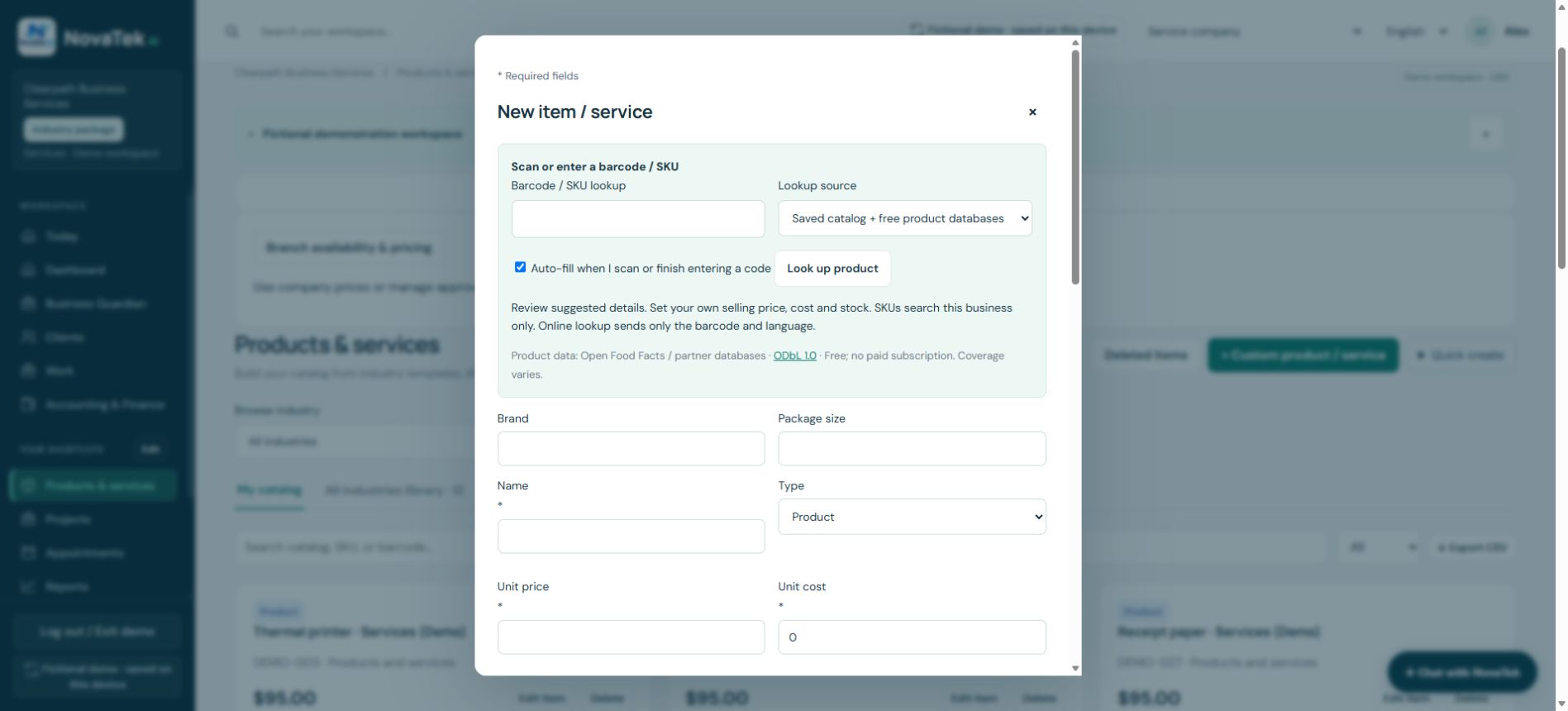
Scan first, review the suggestion, then save
The form can auto-fill suggestions when scanning finishes. Check name, brand, package size and barcode, then set your own selling unit, price, cost and stock quantity. An internal SKU searches this business’s catalog.
Before you act
Free product-database coverage varies. A missing result is not proof that the barcode is invalid. Enter the details manually when necessary; public lookup does not determine your stock or selling price.
Step-by-step guide
- Choose your industry and search the catalog before adding an item. Set your selling price.
- Use Scan product for supported barcode, photo or upload options. A keyboard scanner types into the focused lookup field; Enter submits.
- Review matches before saving. Delete unwanted items using the catalog action; existing documents retain their recorded lines.
Features depend on your plan, permissions and enabled provider connections. These guides explain tasks; reading a guide does not perform an action or confirm completion.
Sign-in and appropriate permissions may be required.