
Account & troubleshooting
Keep working offline
Reviewed:
Open the connection/status control to see “Work online. Keep going offline.” Check Core workspace readiness. Prepare the document reader while online if you need supported photo/PDF reading offline.
See it in the actual workspace
Actual NovaTek demo screenshot • fictional records • captured October 16, 2026. Interface shown in English, except the language example in French.
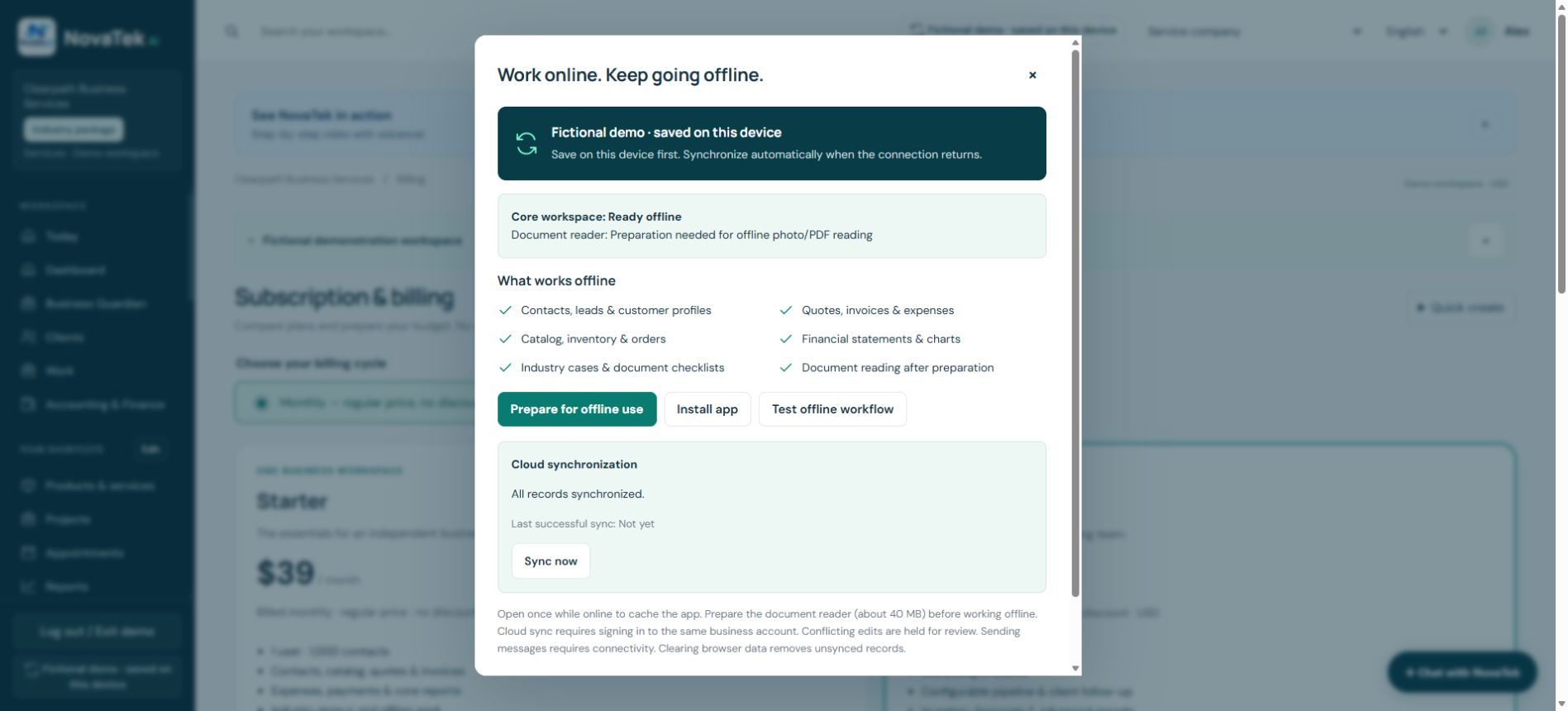
Check readiness before losing the connection
Saved contacts, quotes, invoices, expenses and catalog work can be available on the prepared device. Message delivery, online card-reader payments and cloud synchronization need connectivity.
Before you act
The screenshot shows the readiness panel; it does not prove an offline recovery test. Do not clear browser data with unsynced work. After reconnecting, check the last successful sync and resolve conflicts.
Step-by-step guide
- Sign in online, open the workspace and check Offline Center readiness. Enable trusted-device reopening only on your own device.
- When internet drops, work with supported saved records. Keep the browser’s site data; avoid signing out with pending changes.
- Reconnect and check Cloud synchronization. Resolve conflicts before assuming all changes are shared.
Features depend on your plan, permissions and enabled provider connections. These guides explain tasks; reading a guide does not perform an action or confirm completion.
Sign-in and appropriate permissions may be required.